 Broken Crimp
Adjust the body, add body moves and let go
A beta is more than where the hands and feet go. You can correct how the climber’s body sits on any move, or pose it joint by joint. A body move says what the rest of you is doing, and Let go takes a limb off the wall when the climb calls for it.
1. Adjust the body on a move
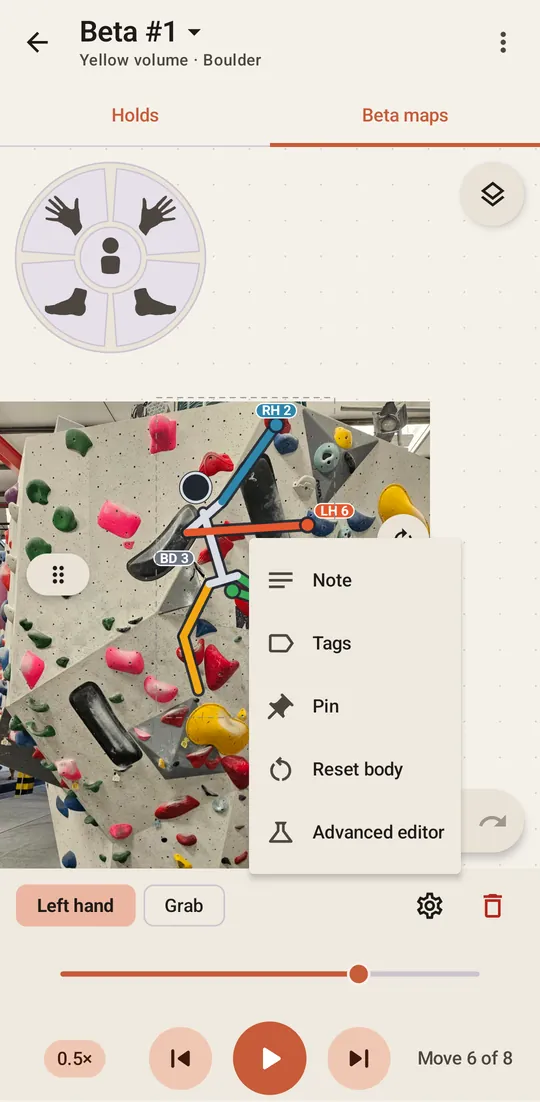
When you place a limb, the app works out where the body goes. If that isn’t how you climb it, correct it. With no limb lit on the dial, tap the climber. A dashed box appears around it, with a handle on one side and two round buttons on the other, and .
 on one side and two round buttons on the other,
 and
 .
- Drag the handle , or the climber itself, to move the body. Hands and feet stay on their holds.
- Slide the arrow button left or right to turn the body. A curved bar shows how far it has turned.
Tap the bare wall to put the controls away.
The change belongs to this move only, and on the next move the app works out the body again. If you pull the body too far, the limb you just placed stops it, and older limbs out of reach let go.
Undo takes back a change. To clear every change to the body on a move, press the gear on the move’s bar and choose Reset body. The row is there only once the body has been changed.
2. Set every joint with Edit pose
When moving and turning the body isn’t enough, pose the climber yourself. Press the pencil beside the selected climber, or choose Edit pose in the menu. A mark appears on the head, the elbows, the hands, the middle of the body, the knees and the feet.
- Drag a mark on a limb to move that joint and nothing else.
- Drag the mark on the middle of the body to move the body. Drag the head to turn it. Either way, the limbs stay where they are.
- If your finger would hide a joint, tap its mark and use the handle that appears beside it.
A limb drawn longer than it really is shows stripes, so you can see where a pose asks too much of it. The stripes appear only while you edit.
The slider and the arrows still work here, so you can pose move after move. Undo takes back one drag at a time, Reset clears the pose from this move, and Done returns to the wall.

 still work here, so you can pose move after move. Undo takes back one drag at a time, Reset clears the pose from this move, and Done returns to the wall.
A pose stays with its move and shows when you play the beta. The handle and the arrow button then edit that pose.
3. Add a body move
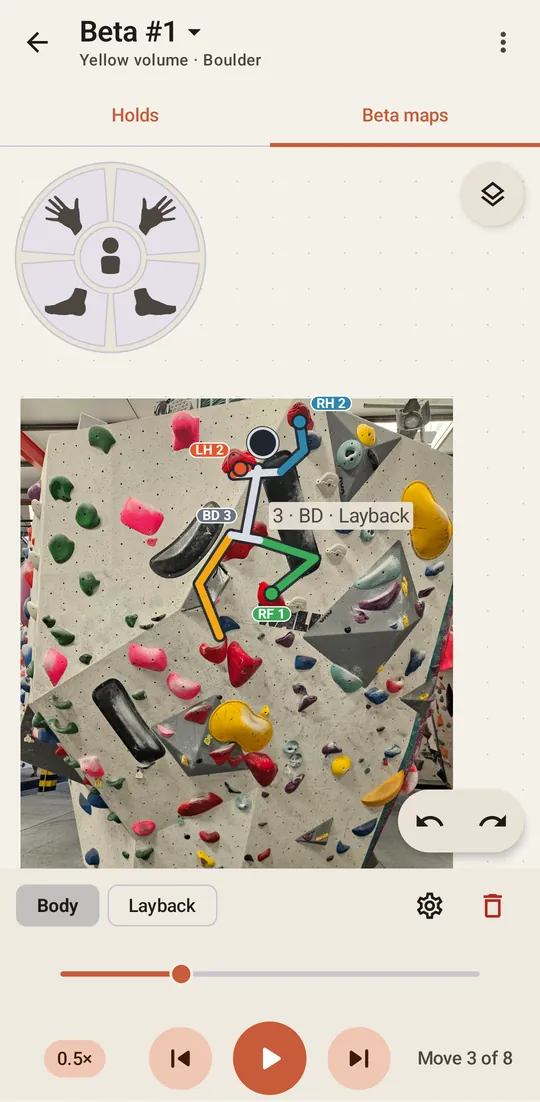
Adjusting the body changes how a move you already placed looks. A body move is a move of its own, with its own number.
On the Beta maps tab, tap the middle of the dial, then tap the wall where your body goes. A grey label marks the spot, and the climber moves its body there.
A body move lasts for that move only. On the next one, the climber is free again.
4. Say which move it is
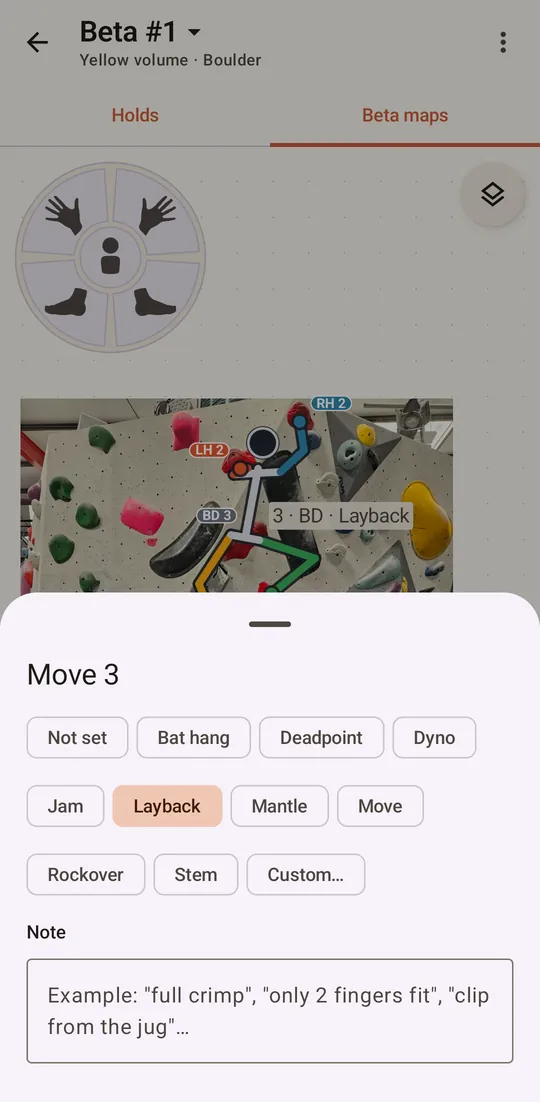
The button under the wall reads Move. Tap it to choose from Bat hang, Deadpoint, Dyno, Jam, Layback, Mantle, Rockover and Stem, or press Custom… to use your own word. The glossary explains each one.
5. Let a limb go
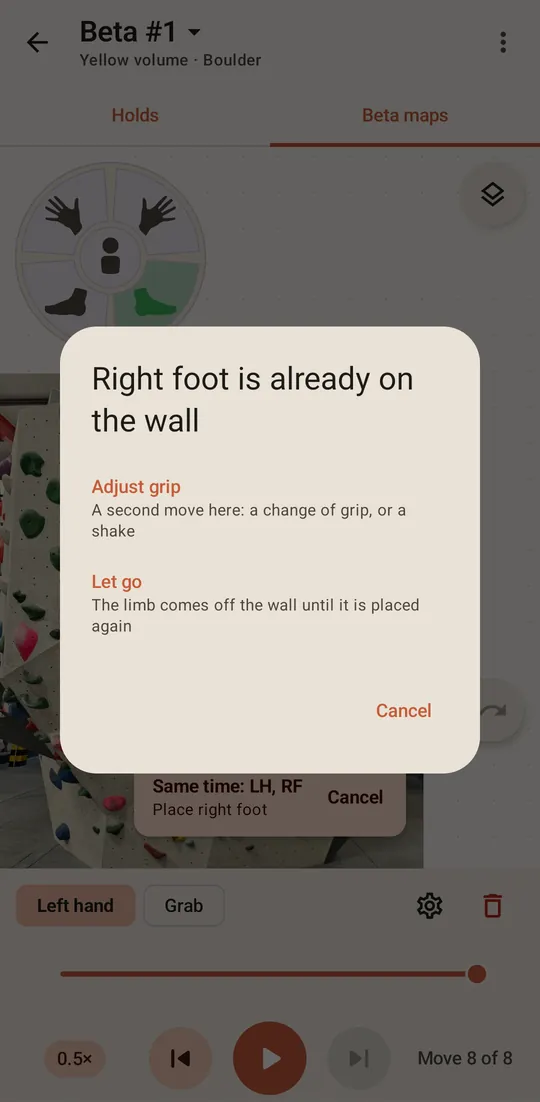
Tap the limb on the dial, then tap the spot where it already is on the wall. The app asks what you mean:
- Adjust grip adds a second move on the same spot, for a change of grip or a shake.
- Let go takes the limb off the wall.
Letting go is a move of its own, with its own number. The climber’s limb then hangs free.
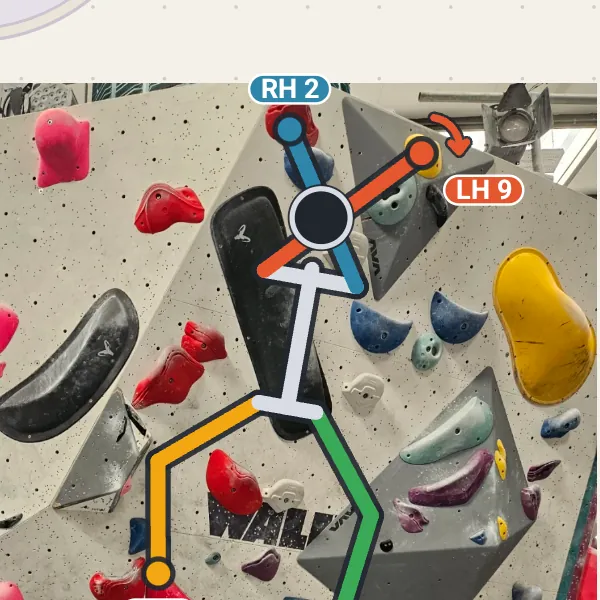
After Adjust grip, a small arrow beside the hand or foot marks the second move on that spot, and the move’s panel opens so you can name the new grip.
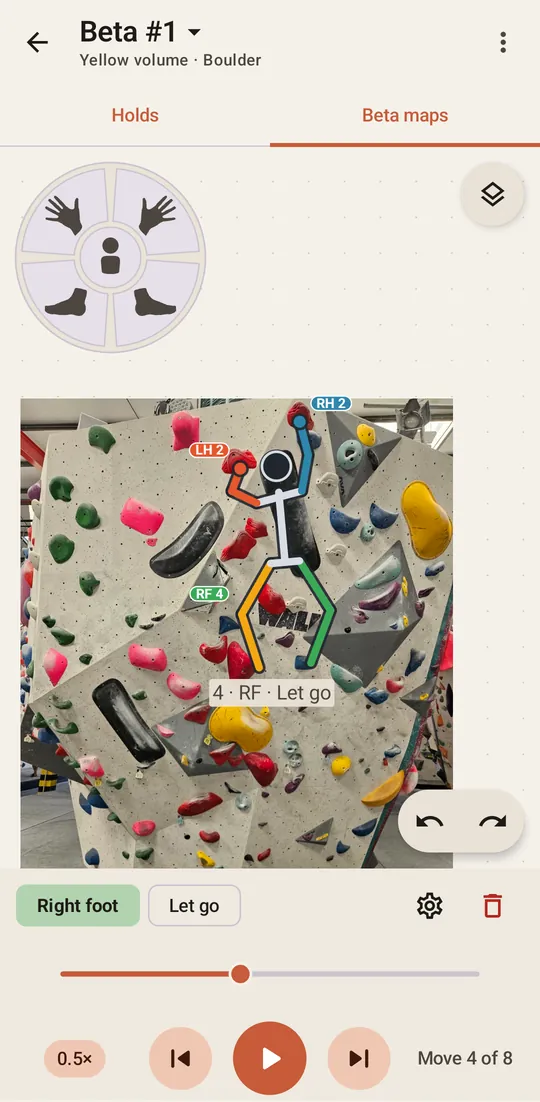
The app also drops a limb by itself when the climber moves too far from it. Use Let go when you want it to happen on a particular move.
6. Put it back
Place the limb again as usual: tap it on the dial, then tap where it goes.
Cut loose as you move
To let a foot go at the same moment a hand moves, put both on one move. Long-press the hand on the dial and tap the foot. Place the hand, then tap the spot the foot is on and choose Let go.