 Broken Crimp
Use Broken Crimp on a computer
The web version is Broken Crimp in a browser tab. It has the same screens as the Android app, so every other guide applies, and a big screen makes mapping a long climb easier. There is nothing to install and no account to make.
1. Check your browser
The web version runs in:
- Chrome or Microsoft Edge, version 119 or later
- Firefox 120 or later
- Safari 18.2 or later
These run on Windows, macOS, Linux and Chromebooks. On an older Mac whose Safari can’t be updated, use Chrome or Firefox instead. On an Android phone, the app from Google Play is the better choice, and an iPhone has its own guide.
If your browser is too old, the page says This browser can’t run Broken Crimp instead of loading. Update the browser, or open the page in another one.
2. Open it
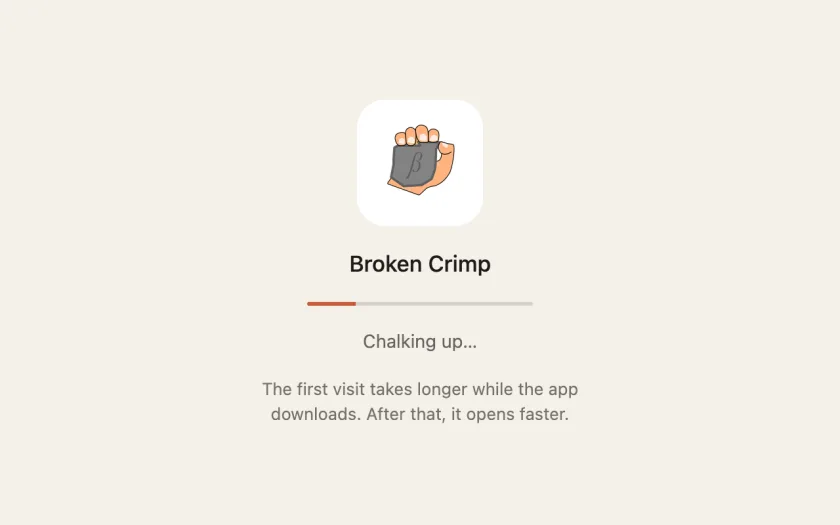
Open the web version and let it load. The first visit downloads the whole app, and a bar shows how far it has got. After that it opens straight away, even with no connection.
To open it like any other program, install it from the browser. In Chrome and Edge, press the install button at the right of the address bar. On a Mac, Safari has Add to Dock in its File menu. Installed this way it opens in its own window, with the climbs still kept in the browser.
3. Use a mouse and keyboard
Everything the guides say to tap, click. Drag with the mouse where they say to drag.
- Zoom: the scroll wheel zooms the wall in and out around the pointer. On a trackpad, pinch or slide two fingers.
- Move around the wall: drag it.
- Long-press: press and hold the mouse button.
- Confirm a dialog: press Enter.
- Back: the browser’s back button goes back a page, from a climb to the list. To close a panel or leave a comparison, use its own or Done.
Full screen in Layers fills the screen with the wall. Press Esc or the same switch to leave it.
4. Only one tab at a time
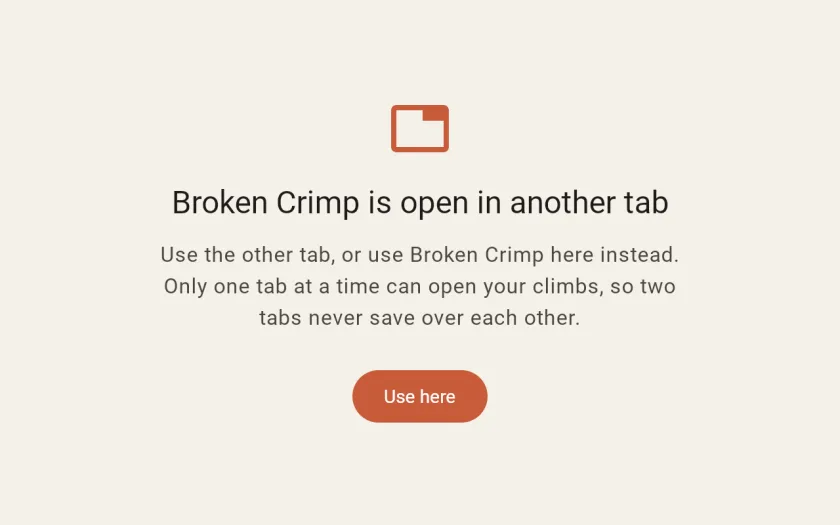
Your climbs open in one tab at a time, so two tabs never save over each other. If Broken Crimp is already open somewhere else, a new tab says Broken Crimp is open in another tab. Press Use here to move to the new tab, and the other one lets go of your climbs.
5. What works differently
- Photos: on a computer, pick the wall photo or a hold photo from your files. A phone’s browser also offers its camera. Photos saved as HEIC, which many phones use by default, can’t be opened. Pick a JPEG or PNG instead, or set the phone’s camera to save JPEG. On an iPhone this setting is called Most Compatible.
- Voice notes: the browser asks for the microphone the first time you record.
- Media: links, notes and photos work. Video from device is on Android only, so add a link to the video instead.
- Sharing: a .beta file, a PDF or a video arrives as a download. Send it on from there.
- Videos: the browser makes the video, and an older browser may not be able to. If Video isn’t in the share options, update the browser.
- Long exports: a big PDF or a long video can take minutes. Before it starts, the app says roughly how long. Keep the page open and in front until it finishes, because a browser slows down a tab you aren’t looking at.
6. Know where your climbs are kept
Your climbs, photos and voice notes are saved in the browser, on that computer, and nowhere else. Nothing is sent to a server, because there isn’t one. This has some consequences:
- Each browser has its own climbs. Chrome can’t see what you made in Firefox, and a second browser profile starts empty.
- They aren’t on your phone. The Android app and the web version keep separate climbs.
- A private or incognito window keeps nothing. Everything goes when the window closes.
- Clearing your browsing data can delete them. Clearing cookies and site data for all sites, or for brokencrimp.com, removes your climbs too.
- A browser can clear them by itself. The app asks the browser to keep its data, and most do. Safari can still delete a website’s data after a week without a visit, and a browser short of disk space can clear sites to make room.
- An installed copy may have its own climbs. On a Mac, Safari’s Add to Dock version can start without the climbs saved in Safari. Move them across with a backup.
7. Back up
A backup is the one copy that doesn’t depend on the browser. In Settings, choose Back up all your climbs, and keep the file somewhere other than that computer. Do it again after a session of mapping.
The same file moves your climbs:
- from your phone to the computer: make a backup in the Android app and restore it in the web version;
- back again: make a backup in the web version and restore it on the phone;
- to another browser or computer: restore the backup there.
The copies don’t stay in sync. Back up and move your climbs explains the two ways to restore and which one to choose.