 Broken Crimp
Use Broken Crimp on an iPhone
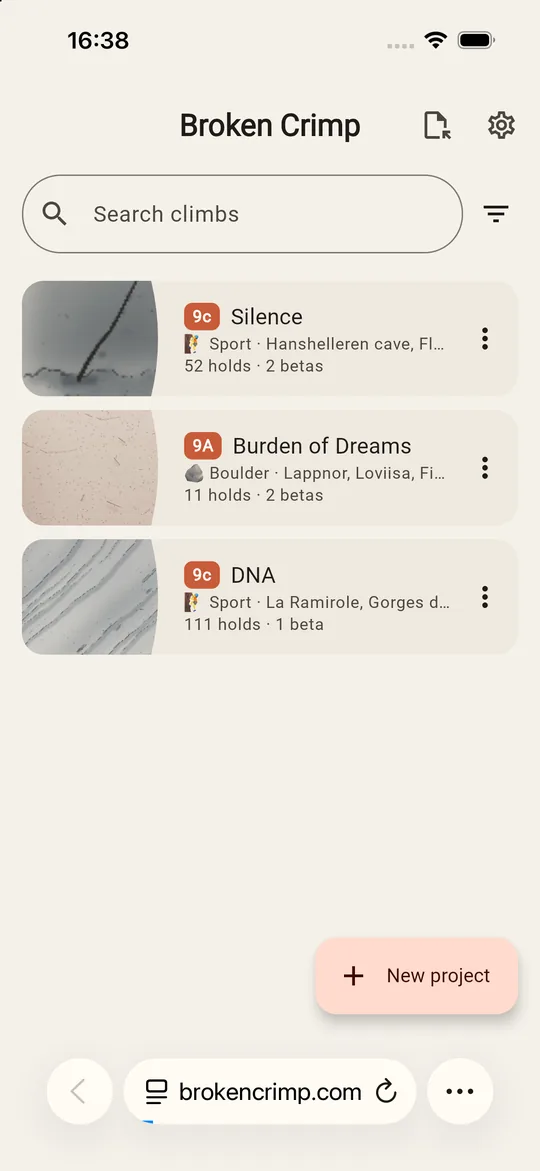
There is no iPhone app, because Apple charges a yearly fee to keep an app on its store. Instead, the web version runs in Safari 18.2 or later. It has the same screens as the Android app, so every other guide applies, and your climbs stay in the browser on your device.
1. Open it in Safari
Open the web version in Safari, and let it load. The first visit downloads the app, and after that it opens with no signal.
2. Add it to your Home Screen
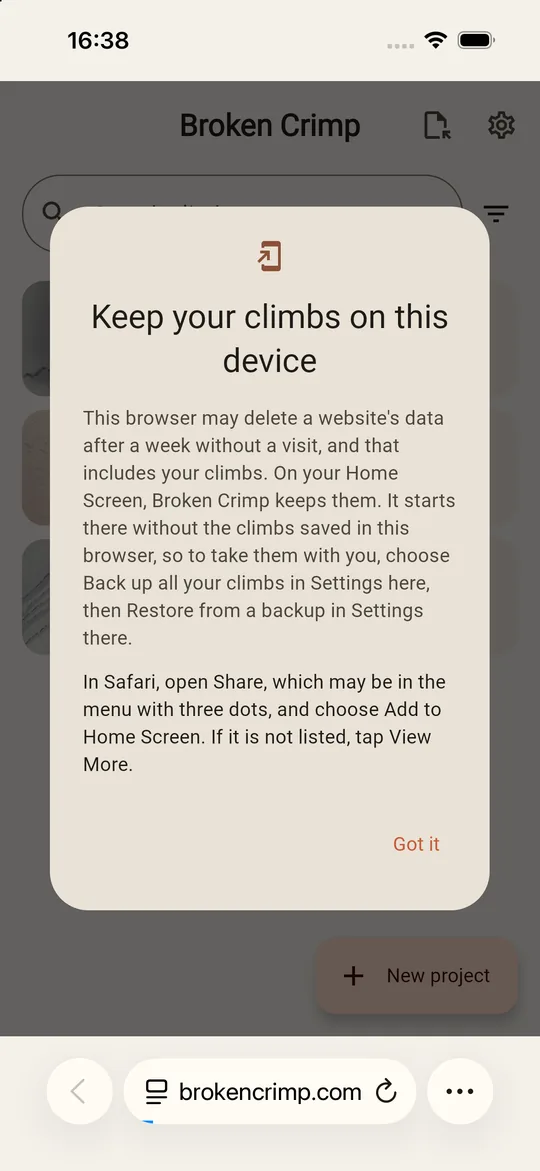
Do this before you map anything you care about. Safari may delete a website’s data after a week without a visit, and that includes your climbs. A web app on the Home Screen keeps them.
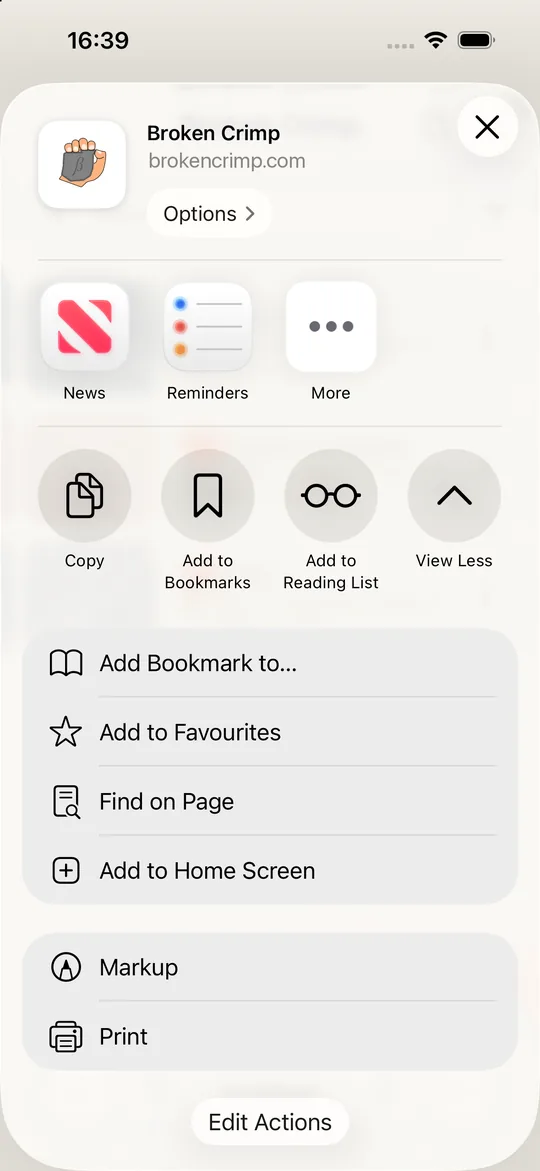
In Safari, open Share, which may be in the menu with three dots, and choose Add to Home Screen. If it is not listed, tap View More. The app reminds you with a message called Keep your climbs on this device.
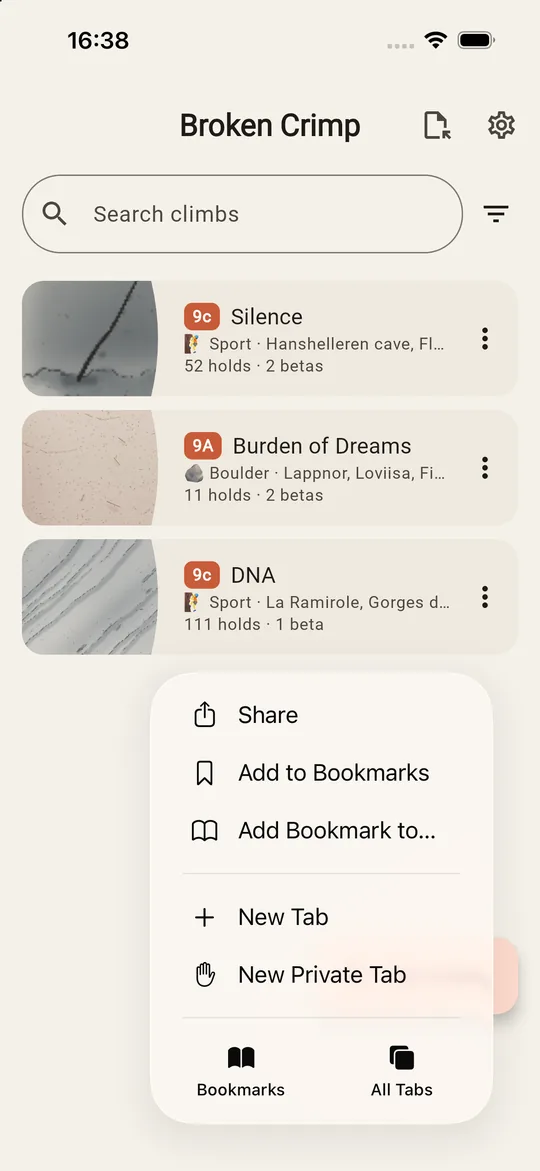
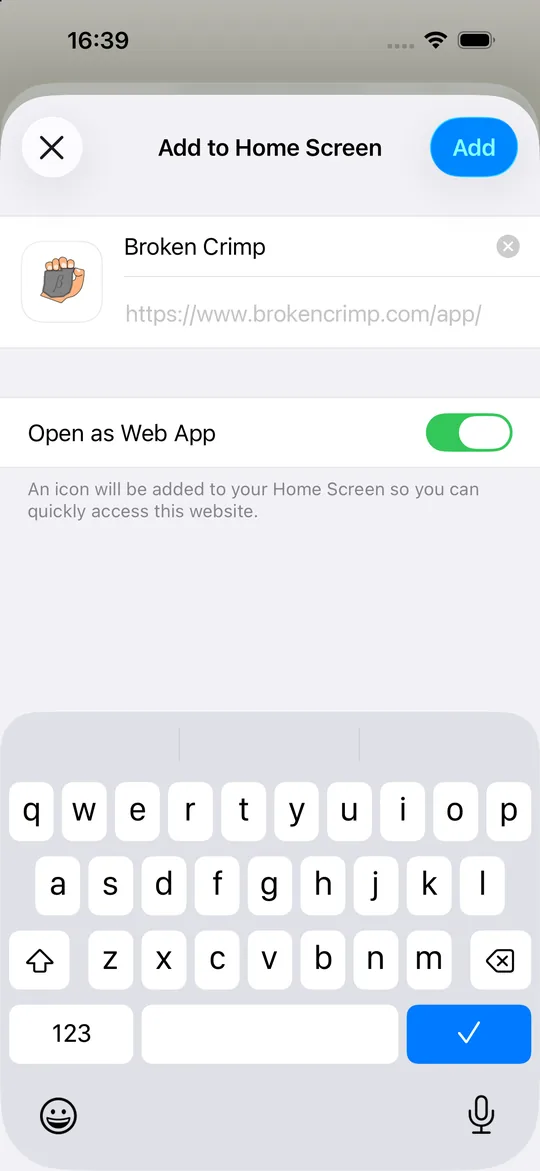
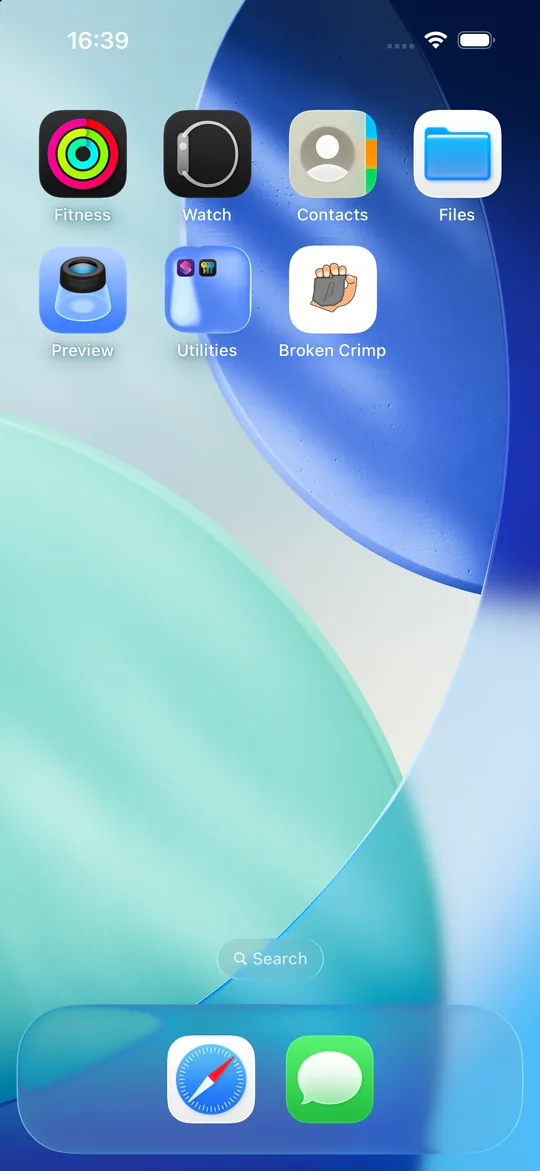
Press Add. Broken Crimp appears on your Home Screen, and opens without Safari’s address bar.
3. Bring across anything you already made
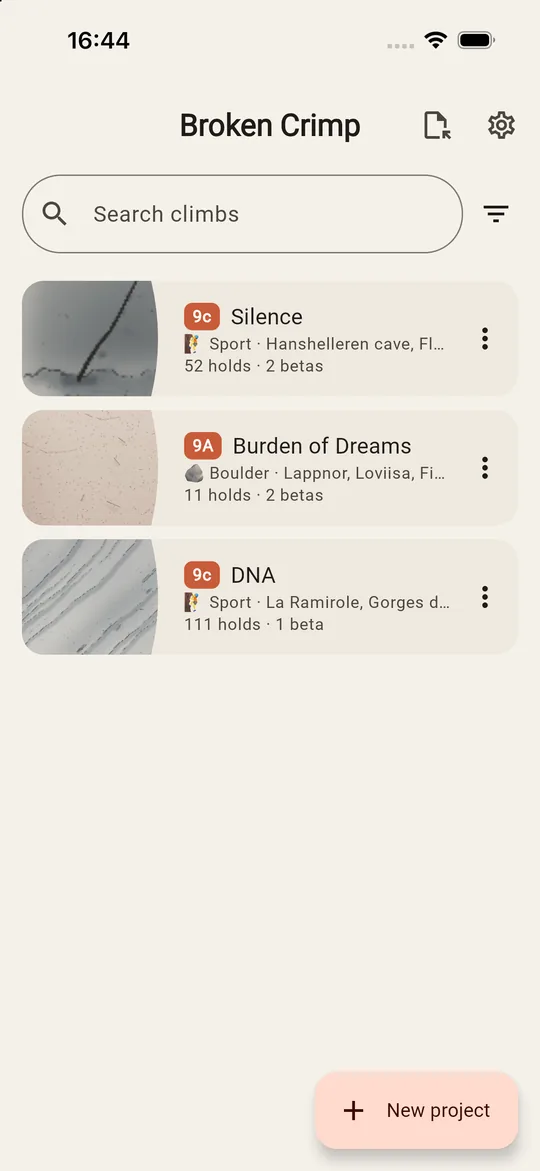
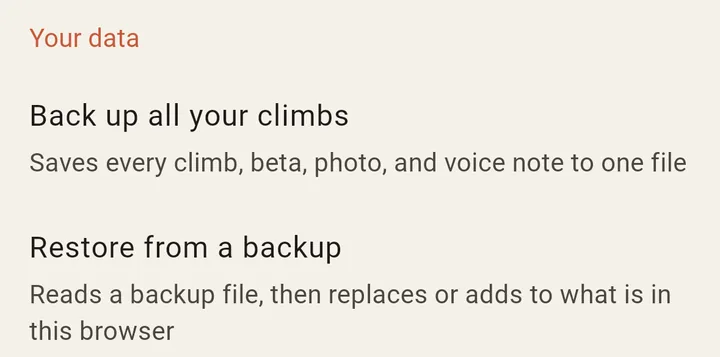
The Home Screen version starts without the climbs saved in Safari. If you have already mapped some, choose Back up all your climbs in Settings in Safari, then Restore from a backup in Settings in the Home Screen version.
4. Back up from time to time
Your climbs are saved in the browser on that device and nowhere else. If you clear Safari’s website data, or remove the app from your Home Screen, they are gone unless you have a backup. Keep one somewhere else.