 Broken Crimp
Rearrange a beta in the advanced editor
You add moves on the wall, one at a time. The advanced editor shows the whole beta as a list, which makes it the quicker place to change what is already there.
1. Open it
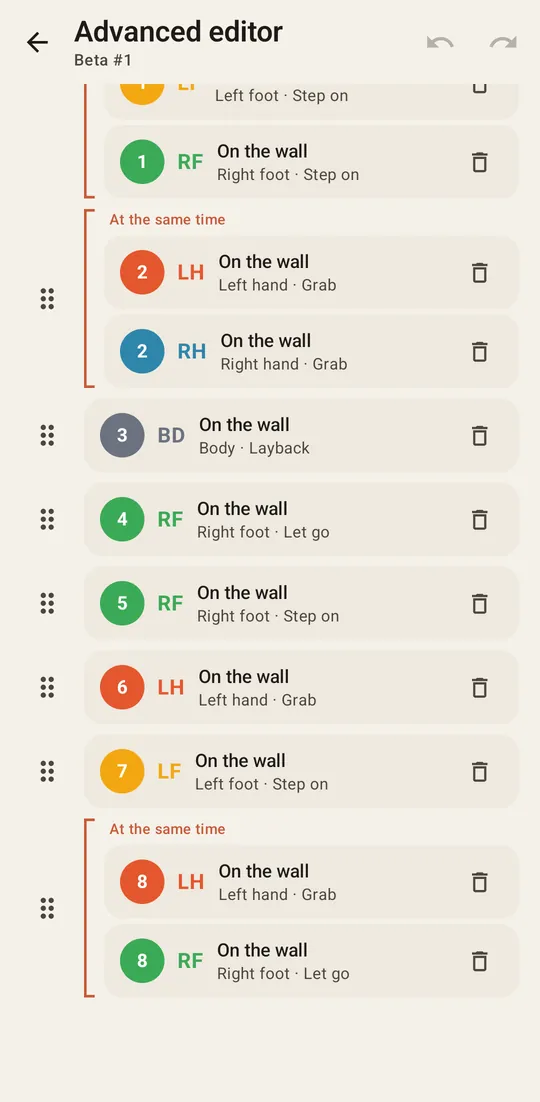
Press the gear on the move’s bar and choose Advanced editor, or choose it in the menu. Every move has a row, and a bracket marks moves that happen together. The arrow at the top left takes you back to the wall, which is also where new moves go.
2. Change the order
Drag the dots at the left of a row to move it up or down, and the numbers update. A bracketed group has one set of dots and moves as a block.
3. Change a move
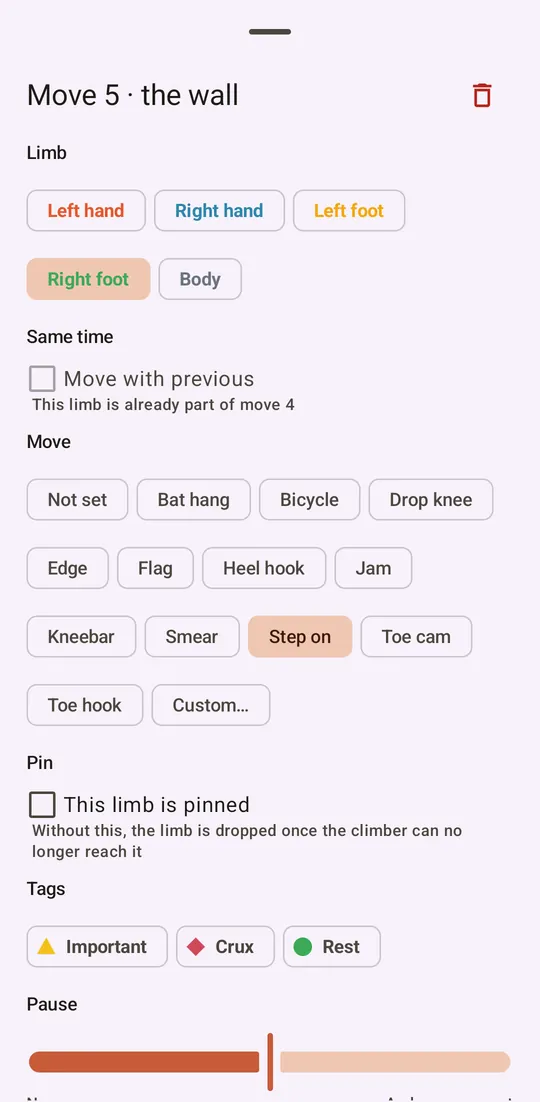
Tap a row to open its panel. Everything about the move is here: the limb, whether it goes with the move before, the move’s name, its pin, its tags and its note.
4. Set a pause
Pause in the same panel sets how long a move waits before the next one, from None to As long as a rest. The middle of the slider is the usual wait. Use it to hold on a hard position when you play the beta, or in a video of it. A move tagged Rest always waits the longest.
5. Remove several moves
Each row has its own bin . To remove several together, long-press a row, tap the others, then press the bin at the top right and confirm. leaves the selection without removing anything.
Undo at the top of the page brings back what you removed.