 Broken Crimp
Organise your climbs
The climb list is the first thing you see in the app. Once it grows, these keep it manageable.
1. Search
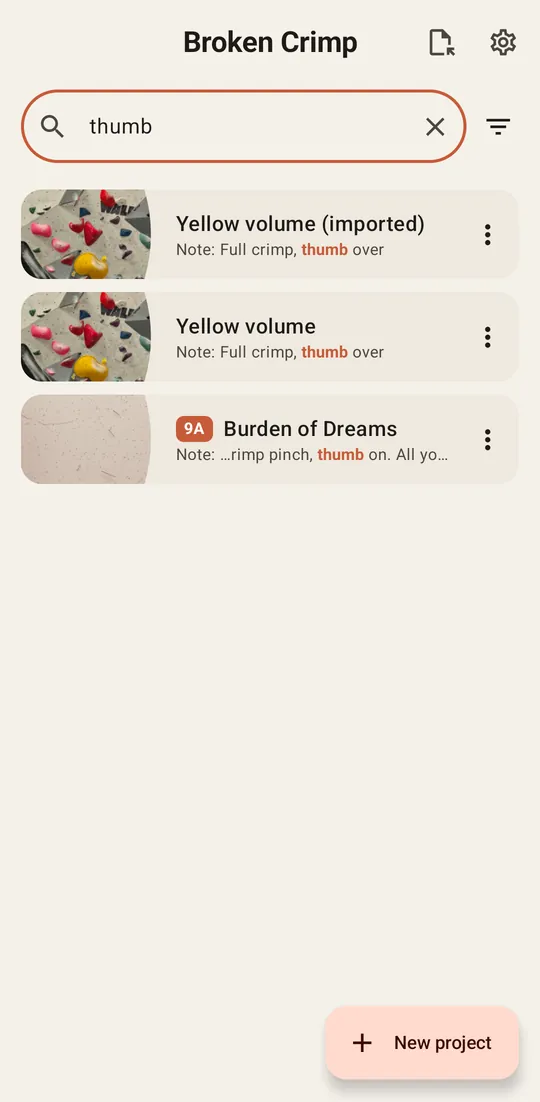
Type in Search climbs at the top of the list. It looks through climb names, beta names, notes and hold names, and shows where it found each match. Press to clear it.
2. Filter and sort
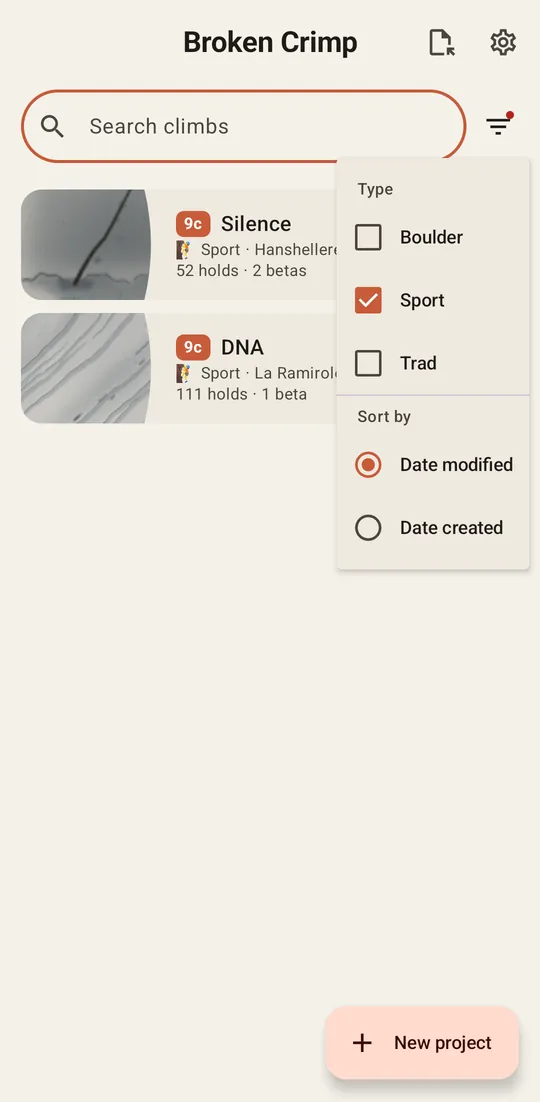
Press the button beside the search box. Type shows only the kinds you tick, and a red dot on the button reminds you a filter is on. Sort by orders the list by Date modified or Date created.
3. Change a climb’s details
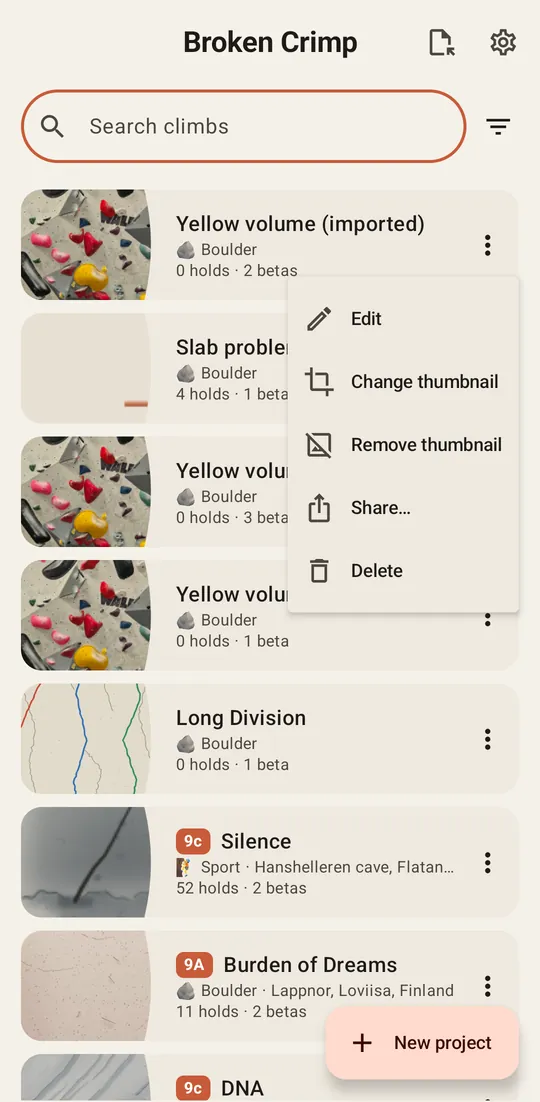
Press the on a climb and choose Edit to change its name, type, grade or location. Edit details… in the menu inside the climb opens the same thing.
4. Choose its picture
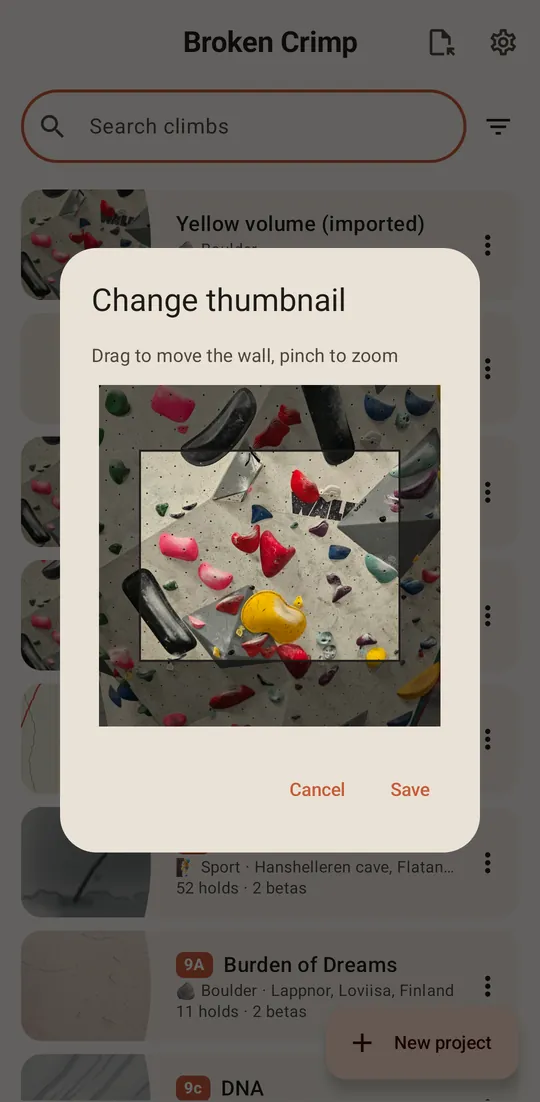
Change thumbnail in the same menu sets what the card shows. Drag the wall to move it inside the frame, pinch to zoom, and press Save. Remove thumbnail takes the picture off the card, and Show thumbnail brings it back.
5. Delete climbs
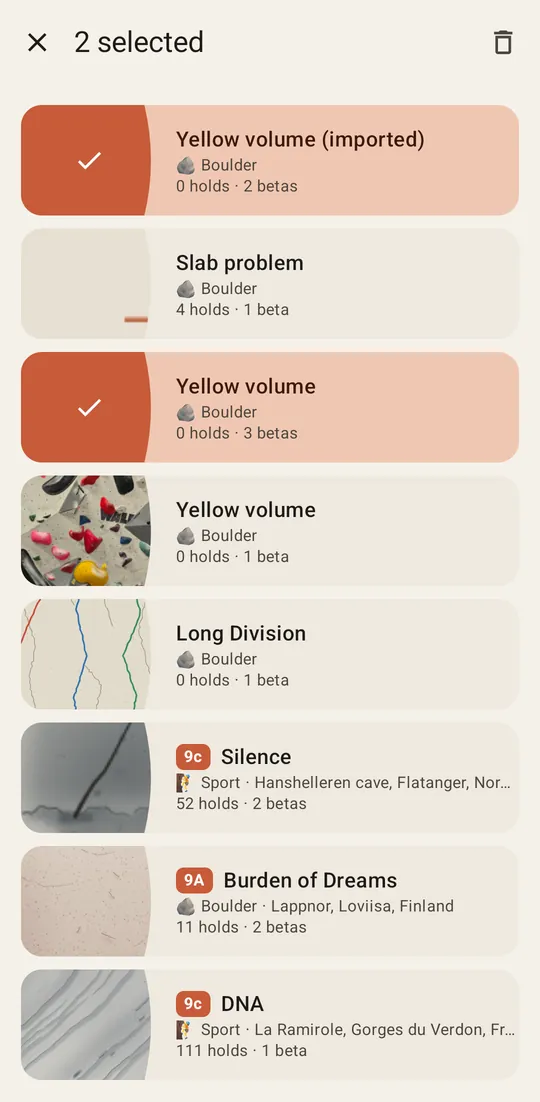
To delete one, press its and choose Delete. To delete several, long-press a climb, tap the others, then press the bin at the top right and confirm. leaves the selection without deleting anything.
A deleted climb takes its betas and media with it, and this can’t be undone, so back up anything you may want again.