 Broken Crimp
Mark sections and write on the wall
Besides holds, the Holds tab has two more things you can add to the wall: lines that split a climb into sections, and words written on the rock. Both show on every beta of the climb.
1. Mark a section
To split a long climb into parts, choose Add section divider… in the menu on the Holds tab. Drag the line into place, press Done, and give the section a name if you want one, like the crux or the rest.
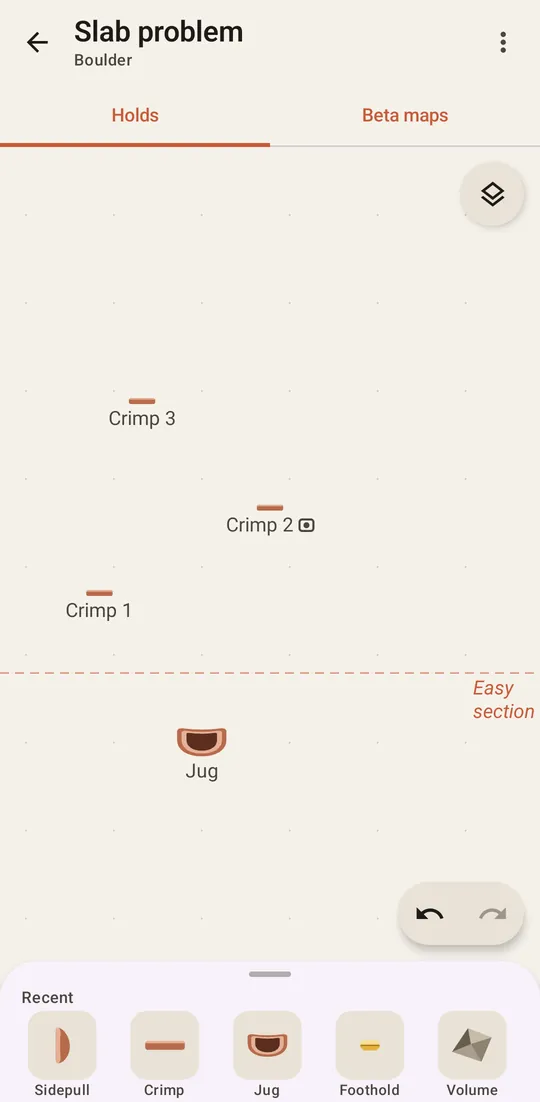
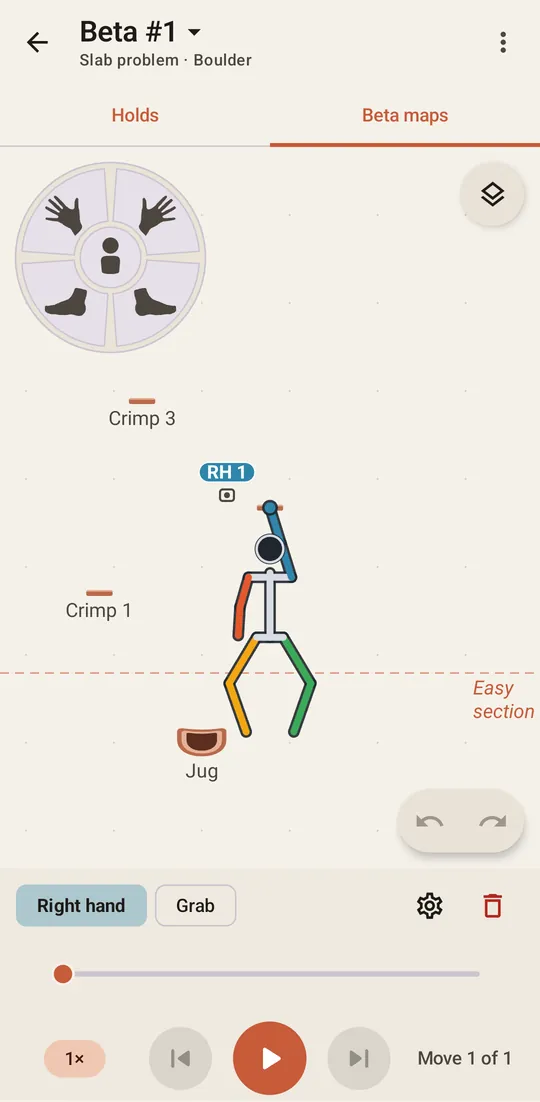
The line shows on the Beta maps tab too.
2. Write on the wall
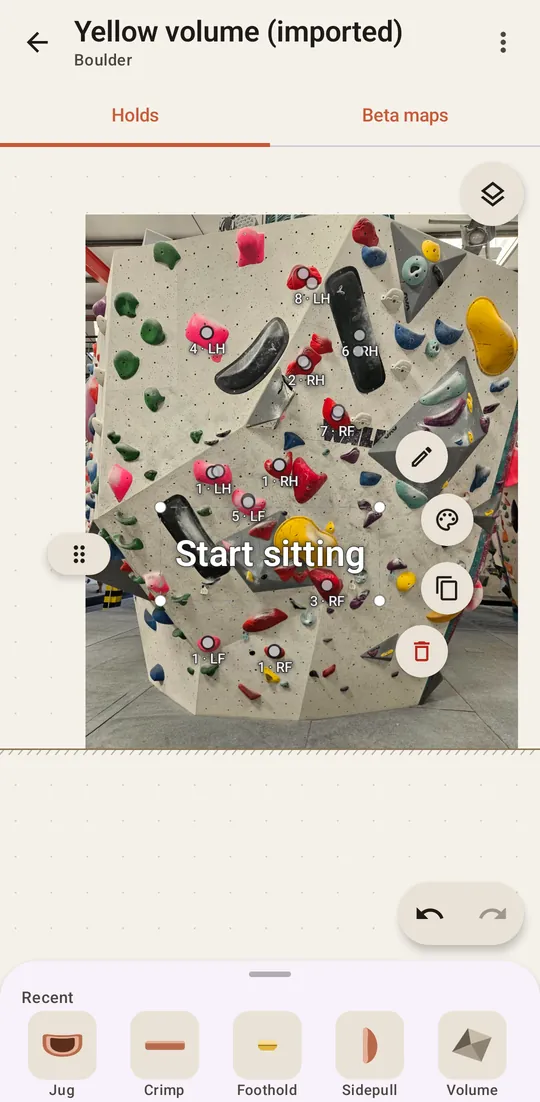
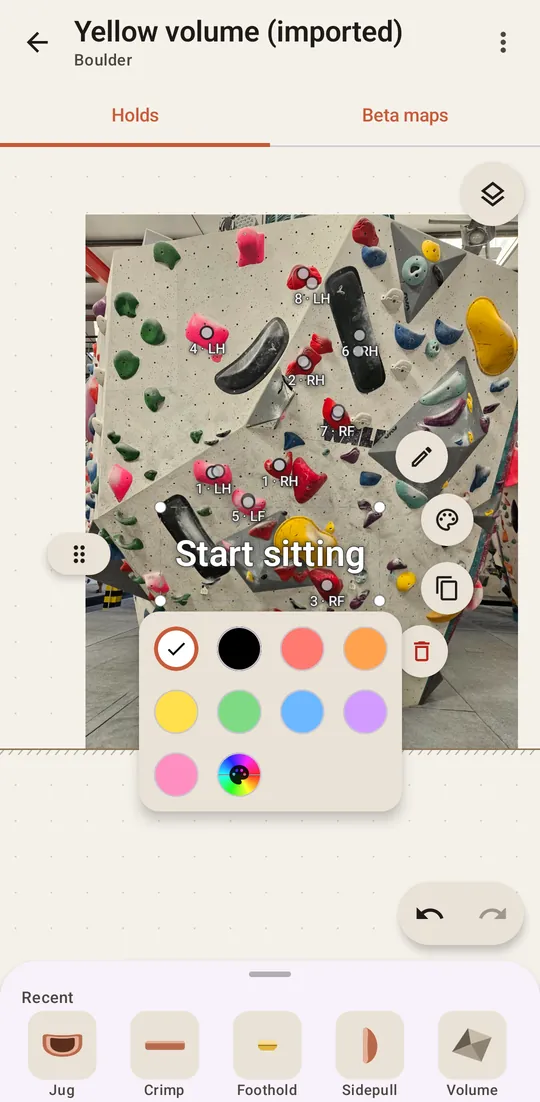
Add text… in the same menu writes words directly on the wall, like start sitting or the way down. Type them and press Add. The text is then selected the way a hold is: drag a corner to resize or turn it, and the capsule to move it. The buttons edit the words , change the colour , duplicate it and remove it .
 to resize or turn it, and the capsule
 to move it. The buttons edit the words
 , change the colour
 , duplicate it
 and remove it
 .
3. See them, or hide them
Sections and words show on the Beta maps tab, but they can only be changed from the Holds tab. To hide them, untick Section dividers or Text in Layers. The Layers guide has the rest.