 Broken Crimp
Change what you see with Layers
A wall full of labels can be hard to read. Layers decides what is drawn, and hiding something never changes the climb.
1. Open the panel
Press the button at the top right of the wall, on either tab. Its rows depend on the climb and the tab: a climb with no holds has no Holds row, and a climb with section dividers or text on the wall has a row for each of those.
 at the top right of the wall, on either tab. Its rows depend on the climb and the tab: a climb with no holds has no Holds row, and a climb with section dividers or text on the wall has a row for each of those.
2. Fade what gets in the way
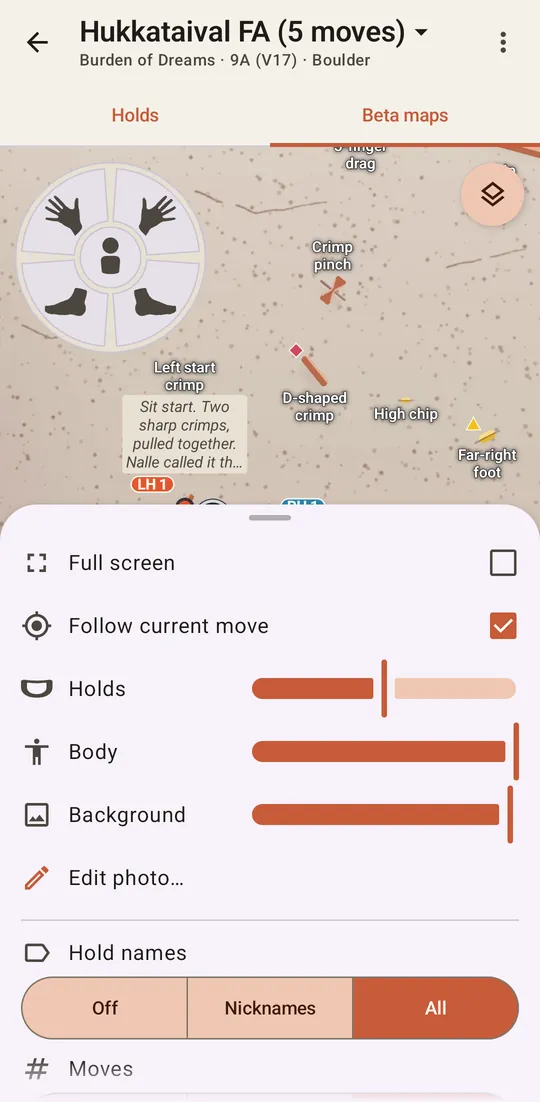
Holds, Body and Background are sliders. Drag one left to fade that layer, and all the way to hide it. Fading the photo makes the holds and the climber easier to pick out.
3. Choose the words on the wall
Hold names decides which holds are labelled on the wall:
- Off hides every name and leaves the rock clear.
- Nicknames shows only the names you gave holds yourself, like the pinch or good jug. It appears once at least one hold has a nickname.
- All labels every hold, with its nickname if it has one and otherwise its type and number, like Crimp 2.
On the Beta maps tab, Moves decides what is written beside the climber’s hands and feet:
- Off shows no labels, only the figure.
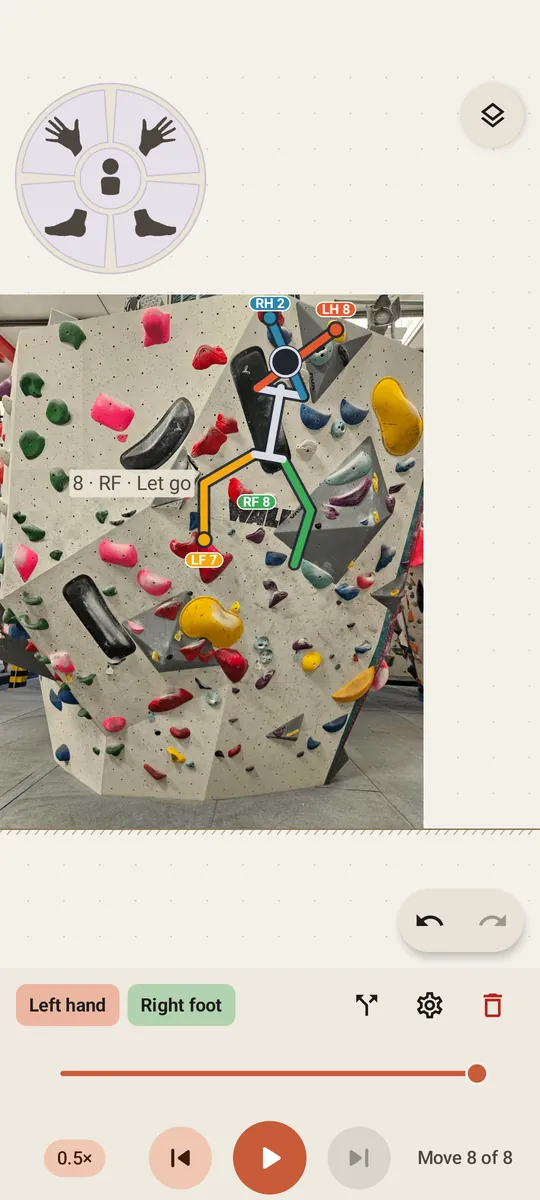
- Numbers gives each hand and foot a small label with the limb and its move number, like LH 3.
- Numbers + notes also writes each move’s note and tags beside its label.
Fewer words make the climb easier to read on a small screen. More help when you are learning the sequence.
4. Decide whether the wall follows the climber
Follow current move is on the Beta maps tab and starts ticked, so the wall moves to keep the current move in sight when you press play . Untick it to keep the wall still.
 . Untick it to keep the wall still.
5. Go full screen
Tick Full screen to hide the app’s title bar and tabs, and give the wall that space. Close the panel to see it. To leave, press Back, or untick the same box.
6. Fix the wall photo later
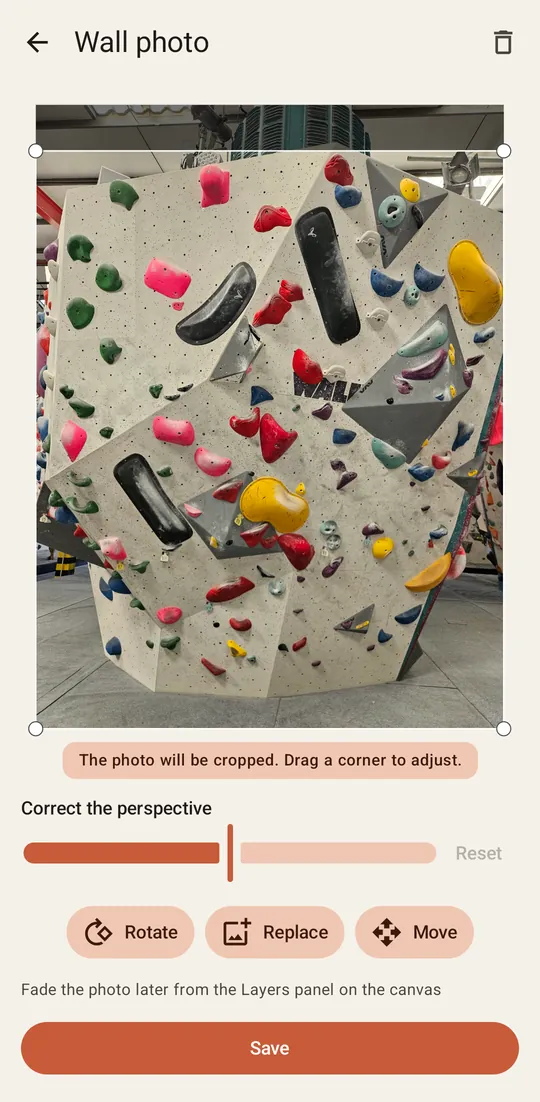
Edit photo… reopens the editor you framed the photo in. Crop it, straighten it with Correct the perspective, or turn it with Rotate, then press Save. Your holds and moves go along with the rock, and Undo on the wall puts everything back.
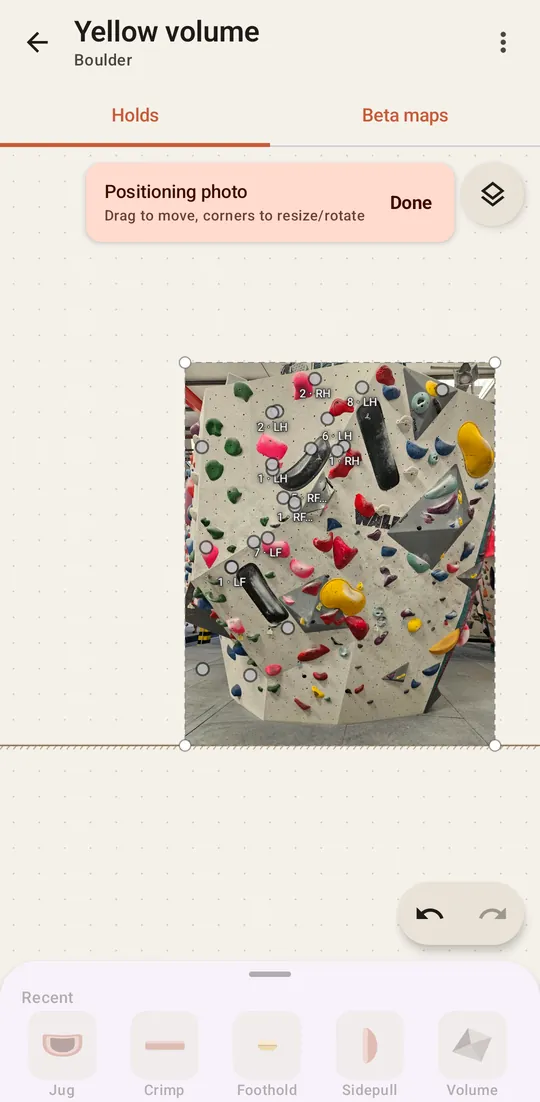
Replace swaps in a new picture, and your holds and moves stay where they are. To line the new picture up with them, press Move. Drag the photo into place, use its corners to resize or turn it, and press Done. Only the photo moves.
 to resize or turn it, and press Done. Only the photo moves.